Course: Scale Your Ad Channel Product Sync with Smart Feed
At SHOPLINE, we understand that successful product advertising starts with accurate, optimized, and scalable product data. This course walks you through how to use Smart Feed to synchronize and manage product feeds across Google, Meta, TikTok, Pinterest, and other advertising platforms from one centralized hub. Whether you're launching your first product feed or expanding into multiple markets, you’ll learn practical strategies to automate feed management, improve feed quality, reduce product disapprovals, and scale your cross-platform advertising operations more efficiently as your business grows.
This course is your practical guide to mastering cross-platform product feed management with Smart Feed: from feed setup to scaling advertising operations across multiple platforms and markets.
Learn how to:
- Understand how product feeds power Google Shopping, Meta catalog ads, TikTok ads, and other advertising platforms
- Set up and synchronize product feeds across Google, Meta, TikTok, Pinterest, Microsoft Bing Ads, and XML-based integrations
- Configure field rules, macros, and platform-recommended attributes to improve feed quality and ad performance
- Manage multi-market product feeds with localized currency and language settings
- Preview, validate, and troubleshoot product feeds before submission to reduce disapprovals and sync issues
Get started today and scale your product advertising more efficiently with Smart Feed!
Mastering Cross-Platform Product Feeds with Smart Feed
Unit 1: What Is Smart Feed and Why It Matters
The Product Feed Problem Every Advertiser Knows
If you've ever run a Google Shopping campaign or Meta catalog ad, you've likely experienced a frustrating disconnect: products showing wrong prices, missing images, or stale inventory data; all while your ad budget keeps running.
Running ads without structured product data is like running a store without labels. Platforms like Google or Meta rely heavily on product feeds to match your products with the right audience.
Product feeds are the data files that tell advertising platforms what your products look like, how much they cost, and whether they're in stock. When these feeds are outdated or inaccurate, shoppers click your ad and find a product that doesn't match what was shown. Trust drops. Conversions drop. Wasted spend goes up.
For example, a skincare brand selling serums may have multiple variants: hydrating, brightening, anti-aging. Without clear product attributes, platforms may not understand how to position these products effectively. And for health and beauty brands, this is especially costly. A lipstick campaign that shows a "sold out" shade, or a moisturizer ad with an old price during a sale, can send potential buyers straight to a competitor.
This is exactly the problem Smart Feed was built to solve.
As SHOPLINE's native feed management solution, it automatically pulls your product data from your store and keeps it synchronized across advertising platforms; so your ads always reflect reality.
For beginner merchants, Smart Feed simplifies the technical setup process by providing platform-ready feed templates and guided channel connections.
For experienced advertisers, Smart Feed helps solve larger operational challenges:
- Keeping product data synced in near real-time
- Managing feeds across multiple advertising channels from one place
- Reducing manual feed maintenance
- Improving feed quality with platform-specific field optimization
- Creating more flexible product selection and feed segmentation workflows
It helps standardize and optimize your product data so ad platforms can better learn, match, and deliver your products to potential customers.
Highlights of Smart Feed
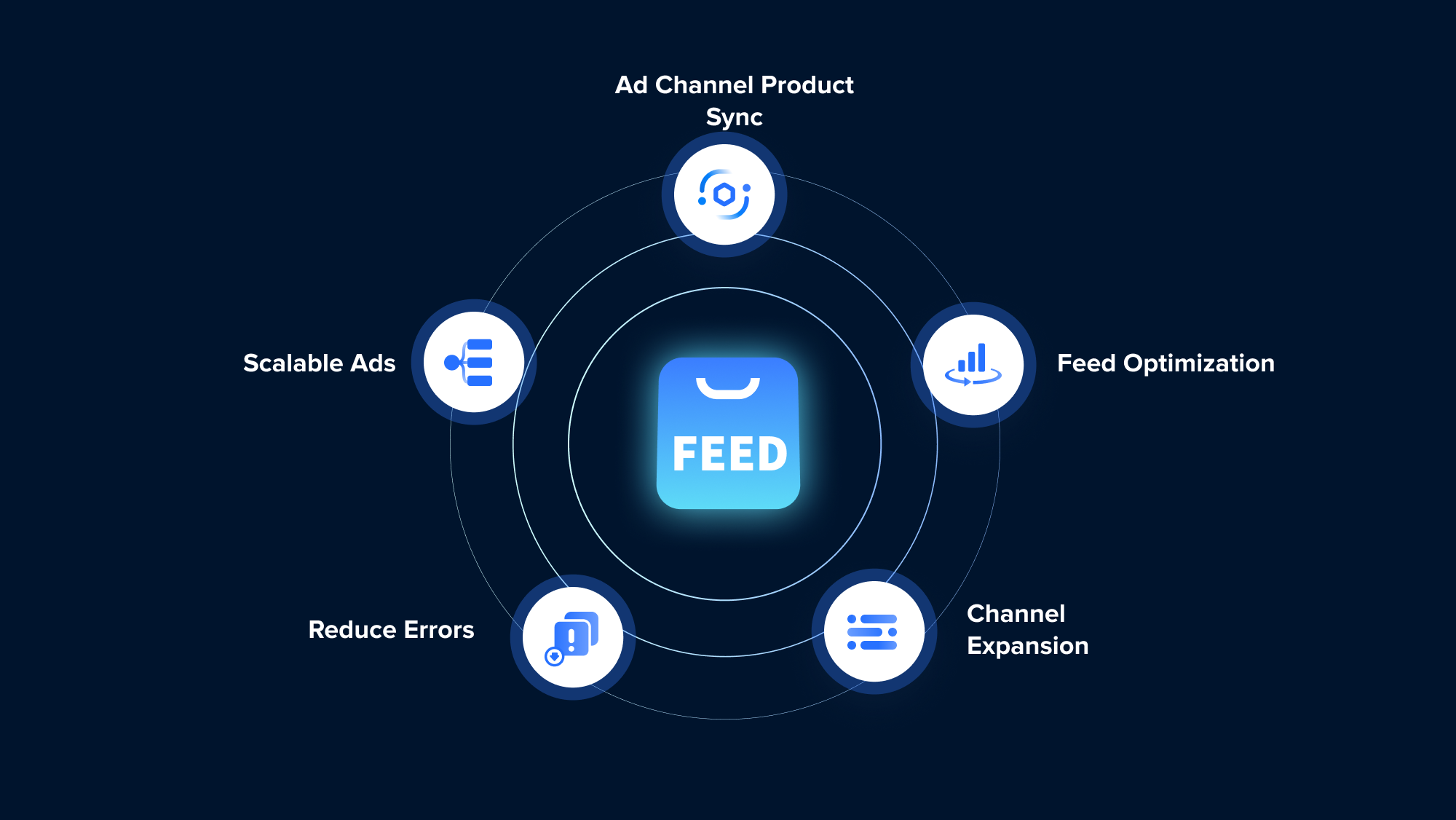
Smart Feed introduces several upgrades that make feed management more scalable. Rather than simply adding new features, Smart Feed was rebuilt to solve the operational challenges merchants face when managing product ads across multiple Ad channels and markets. It's a ground-up rebuild designed for merchants running multiple ad channels at scale.
1. Multi-market support for localized feeds
Problem: If you're selling across multiple countries, manually creating separate feeds for each market is time-consuming and difficult to maintain. Currency mismatches or incorrect language settings can also lead to poor customer experience and lower conversion rates.
How Smart Feed Helps: Create country-specific feeds for Google with local currency and language automatically applied. Manage multiple markets from one platform.
Example: A fashion brand selling in both the US and Canada can automatically localize pricing and language without maintaining duplicate product catalogs or separate manual feeds.
2. Pre-configured best-practice fields
Problem: Every advertising platform has slightly different field requirements and optimization recommendations. Manually configuring them increases setup complexity and can negatively impact feed quality scores.
How Smart Feed Helps: Smart Feed automatically applies the recommended field mappings for each advertising platform. This improves feed quality scores and helps ad algorithms learn faster; leading to better ad performance over time. Advanced merchants can also customize fields further using macros and custom labels to better align with campaign segmentation strategies.
3. Product preview before submission
Problem: Many merchants only discover feed issues after products are already rejected or disapproved on advertising platforms, creating delays in campaign launches.
How Smart Feed Helps: Before pushing any data live, you can preview how every product will appear in a platform; useful for spotting missing category fields or incorrectly mapped attributes.
4. Clearer Error Grouping
Problem: Large catalogs often generate dozens or hundreds of feed warnings. Reviewing errors one-by-one becomes inefficient and slows down troubleshooting.
How Smart Feed Helps: Errors are categorized by type and displayed in groups, making it faster to identify patterns and fix issues in batches.
5. Reusable XML feeds across platforms
Problem: Managing separate feeds for TikTok, Pinterest, Bing, and other platforms creates duplicated setup work and inconsistent product data across platforms.
How Smart Feed Helps: Set up one feed with your preferred field rules and reuse it across TikTok, Pinterest, Criteo, Microsoft Bing Ads, and other XML-based platforms. Fewer setups, more consistency.
In short, Smart Feed is designed not only to help merchants launch product ads faster, but also to help growing brands scale multi-platform advertising operations more efficiently over time.
Preparation Checklist Before You Start
Before you dive into creating your first feed, take a few minutes to run through this checklist. Starting with the right foundation saves a lot of troubleshooting time later.
Products are published in SHOPLINE
Your products must exist in SHOPLINE; created through the admin panel, bulk import, or Open API. Smart Feed pulls data from what's already in your store.
Online Store channel is enabled for products
Every advertising platform verifies that your product URLs are live and accessible on your storefront. If the Online Store channel is turned off for a product, that product can't be submitted or validated.
Your ad platform accounts are ready
- Google: Google Account + Google Merchant Center (GMC)
- Meta: Personal Meta Account + Business Manager (BM)
- Snapchat: Personal Account + Snapchat Business Account
- TikTok, Pinterest, Criteo, Microsoft: No account auth needed (XML feed)
|
Important: Products automatically excluded from Smart Feed
|
| Pro Tip: Do a quick audit of your product catalog before your first sync. Check that key products; especially your bestsellers, are published and have the Online Store channel enabled. Example: A beauty brand with 300 SKUs ran their first sync and noticed 40 products were missing. After checking, they found those products had the Online Store channel disabled: a setting that had been toggled off during a previous website update. Fixing that got all 300 products syncing correctly. |
Unit 2: Setting Up Your First Product Feed: Google & Meta
Before You Begin
If you're completely new to product feeds, this module will walk you through the foundational setup process step-by-step.
If you've already worked with Google Merchant Center or Meta catalogs before, pay special attention to the field rule configuration, sync scope management, preview tools, and multi-market setup features; these are where Smart Feed provides the biggest operational advantages compared to traditional feed management workflows.
Creating a Google Product Feed
Google Shopping reaches shoppers at the exact moment they're ready to buy. Your products need clean, accurate, well-structured feed data to show up and convert.
1. Sync Your Products
Navigate to Manage Products > Sync Products. For catalogs with up to 10,000 variants, the sync completes within 30 minutes. For larger catalogs (up to 50,000 variants), allow up to 2 hours.
2. Connect Google Merchant Center
Go to Manage Channels > Channel Connection > Google, then click Add Channel. Authorize your Google account and select your GMC account. Smart Feed submits products via the Google Content API -- no manual file uploads needed.
3. Set Your Product Sync Scope
Filter by SPU ID or SKU ID, or upload a spreadsheet for bulk selection. For a beauty brand, this might mean syncing only your skincare line and excluding testers, bundles, or digital products.
4. Configure Field Rules
Field rules determine how your SHOPLINE attributes map to Google's required fields (title, category, brand, color, size, etc.). Smart Feed comes with platform-recommended fields pre-configured. Customize using macros: setting the macro "colour" will automatically pull the color attribute from each product (like "Ivory", "Blush Pink", or "Sage Green").
5. Preview Before You Submit
Use the Product Preview to review how each item will appear in GMC. Check that titles are descriptive, variants are complete, and product IDs are consistent; especially important if your store was recently migrated.
6. Submit and Maintain
Click Submit to push products to GMC. Smart Feed runs automatic daily syncs to keep your feed current.
For Multi-Market Sellers:
Each market needs its own feed with local currency and language. Smart Feed supports this with Exchange Rate Protection: holds prices stable within a defined exchange range, especially useful for US + Canada or EU multi-country campaigns.
Creating a Meta Product Feed
Meta's advertising ecosystem: Facebook, Instagram, and the Audience Network, is one of the most powerful channels for brand discovery and retargeting. Here's how to do it in Smart Feed:
Step 1: Connect Your Meta Account
Navigate to Channel Management > Channel Connection > Meta, and click Add Channel. Authorize your personal Meta account, select your Business Manager (BM), and choose the Meta product catalog. Smart Feed syncs products directly into the catalog using the Meta Content API.
Step 2: Define Your Sync Scope
Decide which products belong in Meta. Filter by SKU ID, SPU ID, product title, or upload a bulk CSV. For example, a skincare brand might sync only hero products for retargeting, keeping bundles and gift sets out to avoid catalog clutter.
Step 3: Configure Field Rules
Map your SHOPLINE attributes to Meta catalog fields. Macros work the same as in Google feeds: entering "material" as a macro auto-populates the material field from each product's attributes (e.g., "100% Cotton" for a fashion item).
Step 4: Preview and Submit
Preview products to confirm correct mapping, complete variants, and consistent IDs. Then click Submit.
Bonus: Automatic Category Sync to Meta Product Sets
When enabled, Smart Feed automatically creates and maintains Meta Product Sets that match your SHOPLINE product categories.
Example:
A home decor brand with categories like "Living Room Essentials," "Bedroom Collection," and "Outdoor Furniture" can have those same groups automatically appear in Meta; ready for targeted catalog ads without any manual setup.
Understanding Field Rules and Macros
Field rules are where Smart Feed gives you real control over how your products appear in ads.
Why Field Rules Matter?
Each advertising platform has its own required and optional fields. Google requires "google_product_category", while Meta uses "product_type". If these are missing or formatted incorrectly, products get disapproved.
Pre-Configured Fields
Smart Feed comes with platform-recommended field mappings pre-set for each platform. For most merchants, these defaults will cover the core requirements without any customization needed.
How Macros Work
For attribute-driven fields (color, size, material, pattern), Smart Feed supports macros: dynamic values that pull the correct data from each individual product.
Example A:
A skincare brand has an attribute called "skin_type" (values: "Oily", "Dry", "Combination"). By setting the macro to include {skin_type}, Smart Feed automatically populates this for each SKU -- so a moisturizer might read "Best for: Dry Skin" directly in the feed.
Example B:
A fashion brand uses a "silhouette" attribute (values: "A-Line", "Slim Fit", "Oversized"). Using a macro in the product title field, they auto-generate titles like: "Oversized Linen Blazer - Beige - S/M/L."
|
Important Field Reminders:
|
Unit 3: Expanding to More Channels, Troubleshooting & Staying Error-Free
XML-Based Channels: TikTok, Pinterest, Criteo, Microsoft & General XML
Before We Start
- Beyond Google and Meta, Smart Feed supports a growing list of advertising channels through XML-based integration.
- XML Channels Supported: TikTok, Pinterest, Criteo, Microsoft Bing Ads, General XML (any custom platform)
The Setup Process
same across all XML channels
- Sync products from SHOPLINE
- Set your product sync scope (filter by SPU/SKU or upload a spreadsheet)
- Configure field rules and macros
- Preview products
- Generate the XML feed
- Copy the feed URL and paste it into your advertising platform
| Note: Smart Feed updates all XML feeds automatically once a day. Check the latest update time and product count under Feed Management. |
The General XML Feed = Your Most Flexible Option
Create up to 5 separate General XML feeds per store, each with its own set of field rules.
Best use cases:
- Ad platform not yet directly integrated with Smart Feed
- Single unified field configuration that works across multiple similar channels
- Migrated stores needing to preserve consistent product IDs across all channels
Example:
A fashion brand that runs advertising on TikTok, Pinterest, and a local retargeting network creates one General XML feed with product titles formatted as "[Brand] + [Product Name] + [Color] + [Size]." They use the same feed URL across all three platforms -- ensuring consistent product naming, which improves ad relevance and quality scores across the board.
Troubleshooting: Errors, Disapprovals & Common Fixes
Feed errors are a normal part of running catalog ads; the key is knowing where to look and how to fix them efficiently.
Smart Feed surfaces both submission errors and platform disapprovals in the Error Messages section. Errors are grouped by error type, making it easy to identify patterns and batch-fix issues.
Most Common Error Types:
1. Missing Required Fields
Google requires brand, GTIN, and google_product_category. Meta requires description, availability, and condition. If absent, the product is disapproved.
Fix: In Smart Feed, go to Field Settings and verify required fields are mapped. If source data is missing, update it in SHOPLINE Admin first, then re-sync.
2. Invalid Field Formats
Examples: GTINs that don't match the correct digit count (8, 12, 13, or 14 digits), or availability values using custom text instead of accepted values ("in_stock", "out_of_stock", "preorder").
Fix: Cross-check field value format against the platform's feed specification.
3. Price Mismatch
If the price in your feed doesn't exactly match the price on your product page, Google will disapprove the product. This is one of the most common post-submission errors.
Fix: Ensure price fields are mapped to the live store price. After a sale ends or a promotion changes, trigger a manual sync to refresh the feed.
4. Incomplete Product Data
Missing product images, empty description fields, or unformatted HTML in descriptions are common disapproval triggers across all channels.
Fix: Update the affected products in SHOPLINE Admin > Products. Once fixed, trigger a manual sync.
Example:
A skincare brand discovers 15 products disapproved on Google for missing GTINs. Using the error filter, they identify the exact SKUs, add GTINs in SHOPLINE, and run a manual sync. Within the next daily refresh, all 15 products are approved and live.
Ongoing Feed Maintenance Best Practices
Launching your feed is only the beginning. As your product catalog, pricing, inventory, and campaigns evolve, ongoing feed maintenance becomes critical for maintaining ad performance and avoiding disapprovals.
Best Practices for Long-Term Feed Health
1. Monitor Feed Errors Regularly
Review feed diagnostics at least once a week, especially during promotions, seasonal launches, or large catalog updates.
2. Trigger Manual Re-syncs After Major Changes
Although Smart Feed automatically syncs product data regularly, merchants should manually trigger a re-sync after:
- Large pricing updates
- Product migrations
- Flash sales
- Inventory imports
- Product attribute restructuring
3. Keep Product Data Standardized
Consistent product titles, categories, and attributes improve platform matching and ad relevance.
4. Audit Bestselling Products Frequently
Your top-performing products drive the majority of ad spend. Regularly verify that:
- Pricing matches storefront pricing
- Inventory status is accurate
- Images display correctly
- Variants remain synced
5. Use Preview Before Major Campaign Launches
Before launching holiday campaigns or multi-market promotions, use Product Preview to validate how products appear across channels.
Platform Migration & Preserving Ad Performance
Why Migration Matters for Advertisers
For merchants migrating from platforms like Shopify, WooCommerce, or Shoplazza, maintaining advertising performance during migration is often a major concern.
One of the biggest risks during platform migration is losing historical product IDs, which can reset advertising platform learning and negatively impact campaign performance.
Smart Feed includes migration support tools designed to help merchants preserve product ID consistency across advertising channels during migration.
The Setup Process
For a full migration walkthrough, we recommend also referring to the SHOPLINE Academy Course: Migration Made Easy for close details.